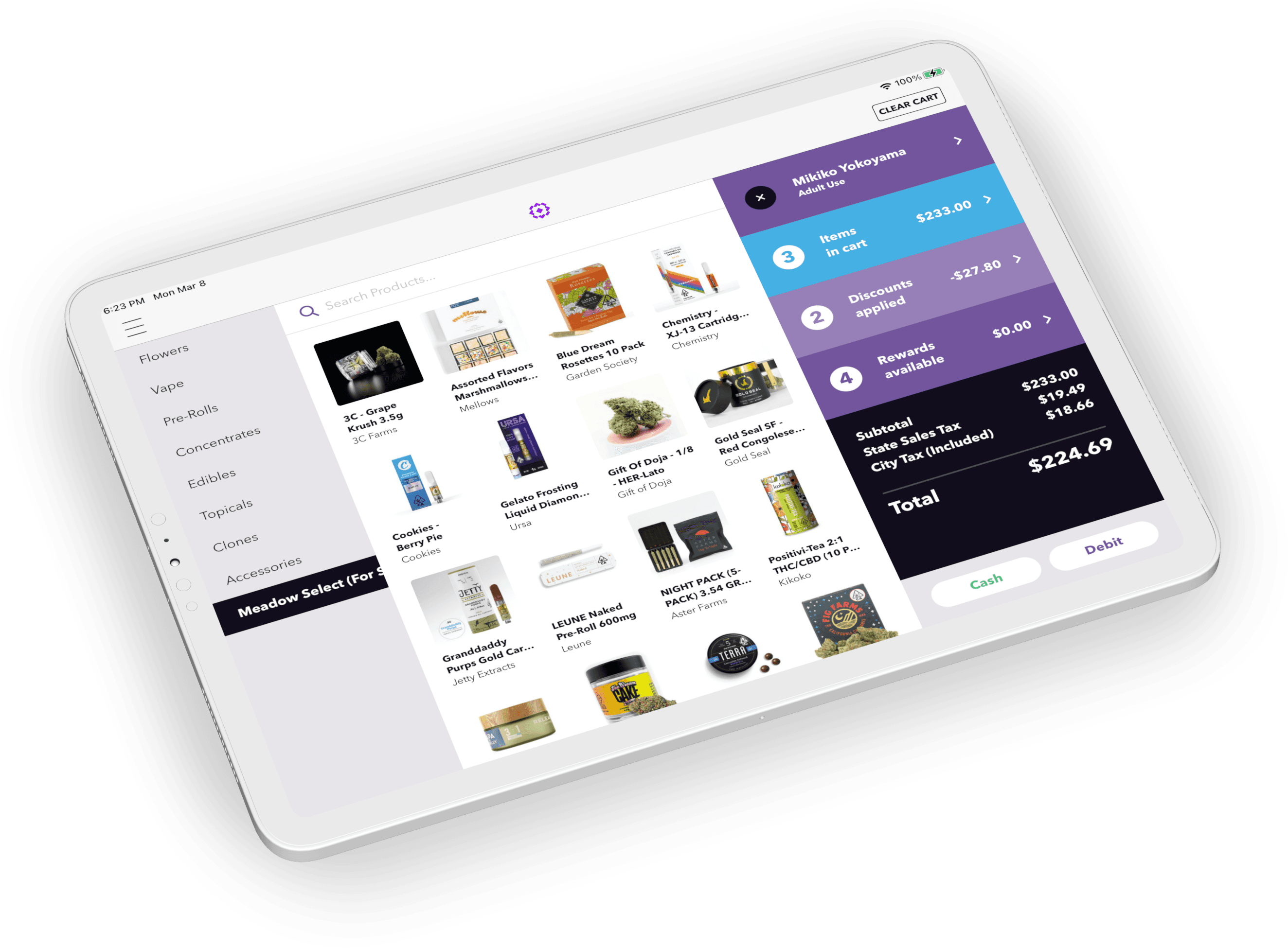

Updating prices, subcategories, or product statuses one item at a time is one of the most tedious jobs in a dispensary back office. A storewide markdown, or a switch to tax-inclusive pricing, can mean opening hundreds of products and re-entering each one by hand, or exporting a report, editing it in a spreadsheet, and reimporting it.
Bulk editing solves that. In Meadow, the Multi Edit Products table lets you filter, sort, and select any number of products in your catalogue and edit them together in a single pass, right in Meadow Admin. A 15% storewide markdown is the same handful of clicks whether it touches twenty products or two thousand.

This guide covers what dispensaries actually use Multi Edit for, how it keeps every sales channel in sync, and how bulk price updates work.
In This Post
- What Is the Multi Edit Products Table?
- What Operators Are Saying
- How to Filter, Sort, and Select Products
- One Change, Every Channel
- How Bulk Price Updates Work
- How to Bulk Edit Dispensary Products in Meadow
- Common Questions
What Is the Multi Edit Products Table?
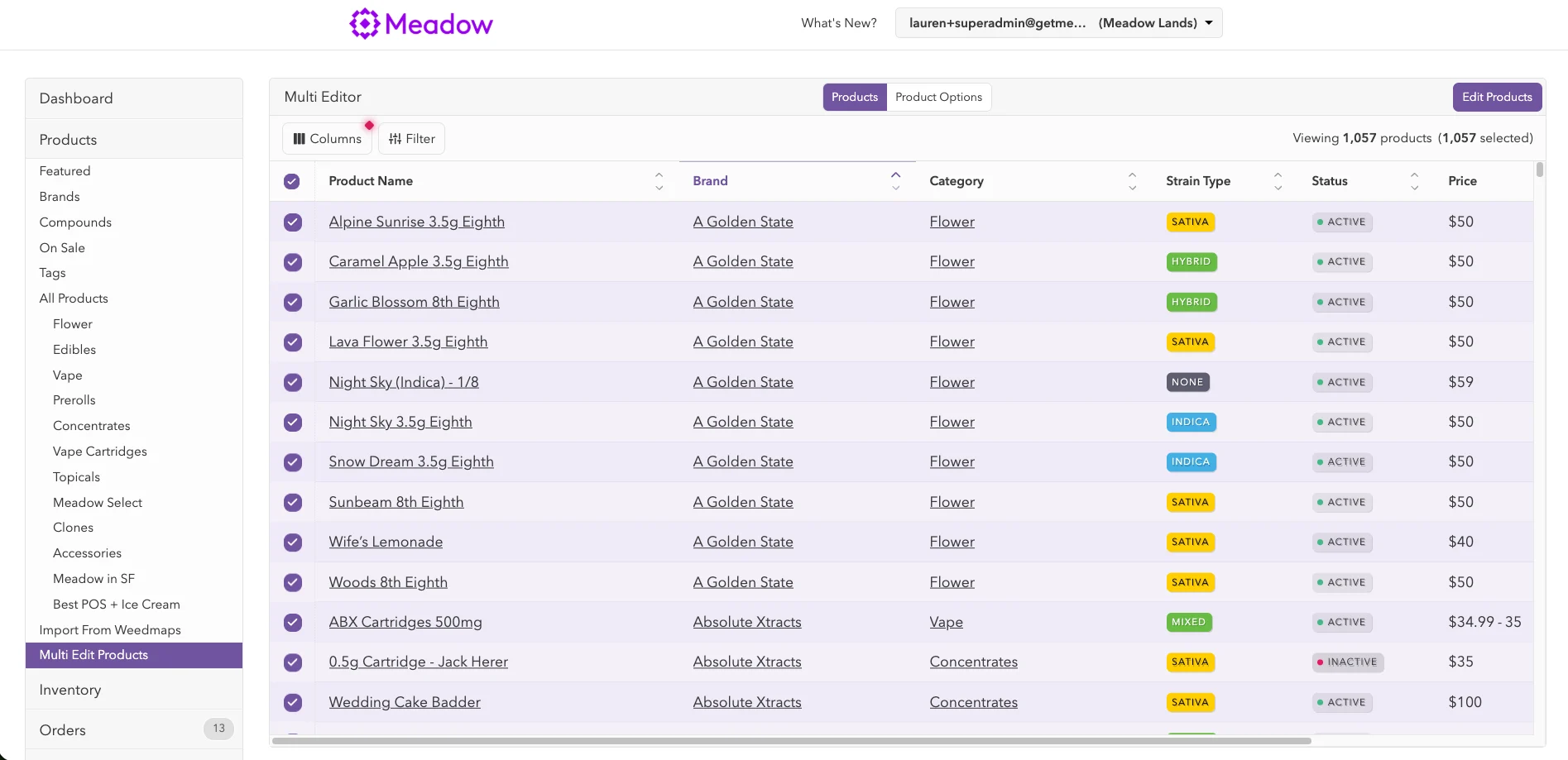
The Multi Edit Products table, found in Meadow Admin under Products, is a spreadsheet-style view of every product and product option in a dispensary's catalogue. Instead of clicking into products one by one, you can filter, search, and sort the whole list, then select any number of products to edit together.
A few real scenarios it solves:
"I want to slash prices across my entire menu."
Filter down to the products in scope (a category, a brand, or everything), select them all, and apply a Shift by Percent price change once. A 15% storewide markdown is the same handful of clicks whether it touches twenty products or two thousand.
"I need to move my menu to tax-inclusive pricing."
Switching from itemized tax to all-in, tax-inclusive prices means adjusting every listed price by the local tax rate. Instead of recalculating and re-entering each product's price by hand, Shift by Percent applies that adjustment across the whole catalogue at once, with rounding built in so the resulting prices land on clean numbers.
"I want to clean up and standardize product details."
Fields like Menu Display Unit, subcategory, brand, and status can all be edited in bulk the same way prices can, so a batch of products with an inconsistent field can be normalized in one pass instead of product by product.
"I want catalogue changes to show up on my menu right away."
Because Meadow is an all-in-one platform, a bulk edit doesn't just update the back office. Price changes, status updates, and featured-product changes made in Multi Edit sync automatically to every connected menu at once: in-store POS, the Menu Pro eCommerce menu, Weedmaps, and Leafly, with no separate export or sync step.
"I want to clear out brands I no longer carry."
Unused brands and product attributes pile up over time. In Meadow, any brand or product attribute with zero products assigned to it can be deleted outright, so a catalogue doesn't accumulate years of dead, unused fields.
Multi Edit is restricted to admins with full permissions, or the specific "Multi Edit Products" permission, since a single bulk action can touch every product in a catalogue at once.
This will save hours!
Mark Toma, Off the Charts

How to Filter, Sort, and Select Products
The Multi Edit table has two views: a Products tab, shown by default, and a Product Options tab, which lists each product option individually rather than grouped under its parent product.
Columns
Any column can be shown or hidden, including:
- Product name
- Brand
- Category
- Subcategories
- Strain Type
- Status
- Featured
- Menu Display Unit
- Price
- Sales Price
Filtering
Any column value can be used as a filter, including searching by product or option name. Filters stack, so a table can be narrowed to, for example, a specific brand within a specific category at the same time. Archived products stay hidden by default and only show up once the Archived status filter is applied. A "Reset Filters" option clears everything back to the full list.
Sorting
Clicking a column header sorts the table alphanumerically by that column, cycling between unsorted, ascending, and descending order with each click.
Selecting products to edit
Once the table is filtered down to the right products, individual checkboxes select products one at a time. Holding shift while clicking a second checkbox selects every product in between as a range, so a filtered list of fifty products can be selected in two clicks instead of fifty.
One Change, Every Channel
A bulk edit is only as good as how fast it reaches the customer. On a lot of cannabis tech stacks, the POS, the online menu, and third-party listings like Weedmaps and Leafly are separate systems that sync on a delay, or don't sync automatically at all, which means a price change made in the back office doesn't show up where a customer is actually shopping until someone remembers to push it through.
Meadow is built as a single, all-in-one platform rather than a POS bolted onto a separate menu tool. A change made in Multi Edit, whether it's a storewide price drop, a tax-inclusive pricing switch, or a batch of products going out of stock, updates in-store POS, the Menu Pro eCommerce menu, Weedmaps, and Leafly at the same time, automatically. There's no second export, no separate menu update, and no gap between what the back office says and what the customer sees.
💡 How Meadow handles this: Menu Pro, Meadow's built-in eCommerce menu, pulls directly from the same product data Multi Edit updates, so a catalogue cleanup project doubles as a menu refresh with no extra work. See Meadow's eCommerce features →
How Bulk Price Updates Work
Price is one of the most common things to update in bulk, and Multi Edit supports several ways to do it, for both list prices and sales prices:
- Set: apply a specific new price to every selected product. This adds a sales price to any product that doesn't already have one, and overwrites the existing sales price on any product that does.
- Shift by Percent: apply a percentage-based increase or decrease to existing prices.
- Shift by Amount: apply a dollar-based increase or decrease to existing prices.
- Set Relative to Price: available for sales prices only, this sets the sale price as a percentage below each product's list price, so the discount stays consistent even across products with different list prices.
- Remove: clear an existing sales price from the selected products.
Shift by Percent and Set Relative to Price both support rounding, to the nearest cent, nickel, dime, quarter, fifty cents, dollar, or five dollars, so resulting prices land on clean numbers instead of odd fractions of a cent. Sales prices can't be set equal to or above a product's current list price.
Worked example: going tax-inclusive. Say a dispensary in a market with a combined 25% cannabis tax rate wants to switch from itemized tax at checkout to simple, all-in menu pricing. Filtering to the full catalogue, selecting everything, and running a Shift by Percent increase of 25% (rounded to the nearest quarter) recalculates every list price at once, instead of opening each product and doing the math by hand.
💡 How Meadow handles this: Every price change made through Multi Edit is captured in Meadow's audit log, which shows the before-and-after price for each product, so bulk changes stay traceable after the fact. See how the audit log supports loss prevention →
How to Bulk Edit Dispensary Products in Meadow
- Confirm permissions. In Meadow's Admins list, confirm that anyone who needs to use Multi Edit has either full admin permissions or the "Multi Edit Products" sub-permission enabled. Learn more: Team Permissions for dispensary operations →
- Start with a narrow filter. For a first bulk edit, filter down to a small, well-defined set of products (a single brand or category) rather than the full catalogue, to get comfortable with how selections and edits behave.
- Review the selection before editing, then send it.
- Check the audit log after larger changes. Especially for the first few bulk edits, spot-check the audit log afterward to confirm the before-and-after prices match expectations.
For the full walkthrough, see Meadow's help guide on Multi Edit Products.
This new update is amazing! The multi-editor is going to save me so many hours of exporting reports and filtering and adjusting and printing just to normalize subcategories.
Sam Dodd, Yucca Valley Dispensary
Common Questions
What is the Multi Edit Products table? It's a table in Meadow Admin, under Products, that shows every product and product option in a catalogue at once, with filtering, sorting, and bulk-edit tools so changes can be applied to many products at the same time instead of one by one.
How do I bulk update prices in Meadow? Select the products to update, then choose Set, Shift by Percent, Shift by Amount, Set Relative to Price (for sales prices), or Remove, depending on whether the change should be a specific price, a proportional shift, a flat dollar shift, or a percentage-off-list discount.
Who can use Multi Edit Products? Admins with full permissions, or anyone specifically granted the "Multi Edit Products" permission. Permissions can be reviewed and updated in Meadow Admin's admins list.
Does Meadow track bulk price changes? Yes. Meadow's audit log shows the before-and-after price for each product changed through Multi Edit, so bulk price updates stay traceable after the fact.
One Platform, Every Part of Your Catalogue
Dispensaries are already using Multi Edit to turn catalogue cleanup from a multi-hour chore into a five-minute task, and because Meadow is all-in-one, that speed carries through to POS, your online menu, Weedmaps, and Leafly the moment it happens. If you're evaluating a POS built as one connected platform instead of a patchwork of tools that sync on a delay, let's talk.
Book a Call with Meadow to Learn More